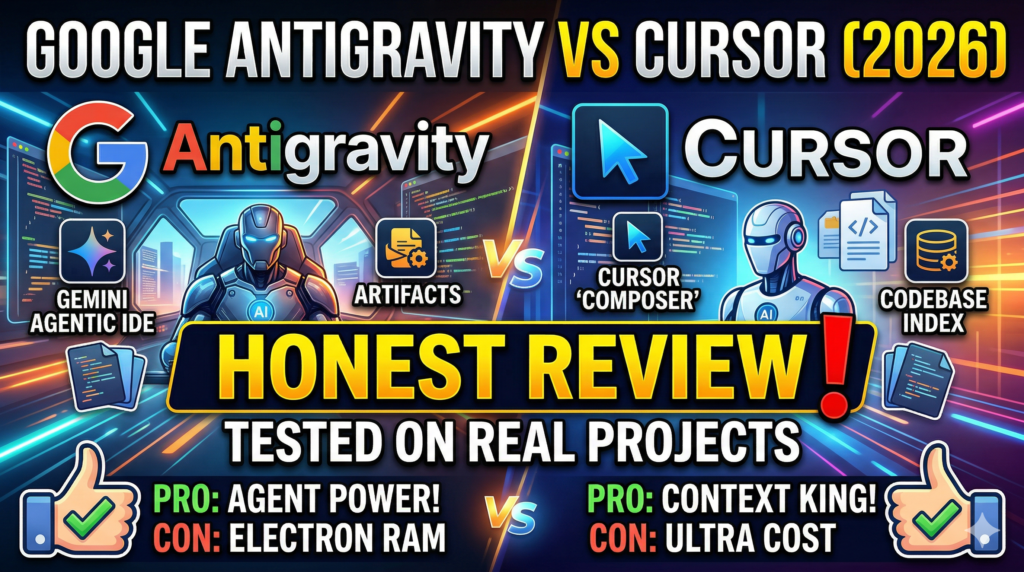
Google just released a free agent-first IDE to challenge Cursor. One acts like a coding assistant. The other acts like an autonomous engineering team. After three weeks of daily use on real projects, including one incident that nearly cost me a full day of work, here is every answer you actually need before you decide which one belongs in your workflow.
What This Review Actually Covers
Most comparisons of these two tools stop at feature lists. This one does not.
By the end of this post you will know exactly what Google Antigravity is, how it differs from Cursor at a fundamental level, what security settings to configure before you touch any real code, what the D drive incident actually tells you about autonomous AI risk, which tool wins for your specific situation, and what neither tool wants to say out loud about where this is all going.
You will also get real benchmark data from tasks I ran on actual projects, a concrete answer to whether Cursor users should switch, a full decision matrix, and every limitation both tools are hiding in their marketing copy.
What Is Google Antigravity
Google Antigravity is an AI-powered integrated development environment launched on November 18, 2025. It is a heavily modified fork of Visual Studio Code, though there is ongoing debate in the developer community about whether it is a direct VS Code fork or a fork of Windsurf, which is itself a VS Code fork. The fork question matters because it affects extensions compatibility in ways that are still being documented.
Antigravity is free during public preview. It runs on Windows 10 and above, macOS Monterey 12 and above, and 64-bit Linux with glibc 2.28 or later. As of late February 2026 it is on version 1.18.4.
The core idea behind Antigravity is that agents should not just be chatbots in a sidebar. They should have their own dedicated space to plan, execute, and verify complex development tasks with minimal human intervention.
Google describes this as an agent-first platform, and that phrase matters more than most marketing language. It is a genuine architectural difference from every previous AI coding tool including Cursor.
The name itself is intentional. Google chose “Antigravity” because traditional development has gravity: the heavy, tedious weight of setting up environments, debugging boilerplate, and jumping between the terminal, browser, and editor. Antigravity is built to provide liftoff. It is designed to pull you out of the weeds of low-level syntax and elevate you to a task-oriented level.
What Is Cursor
If you have not used Cursor, think of it as VS Code with a very powerful AI co-pilot built directly into the editor rather than bolted on as a plugin.
Cursor’s Composer model is purpose-built for code and completes typical tasks in around 30 seconds. It supports up to 8 parallel agents in isolated workspaces for true parallel development. It has been available since 2023, has serious commercial traction at around $500 million in annual recurring revenue, and has documented enterprise deployments including at NVIDIA where internal code commits tripled after rollout.
Cursor costs $20 per month for the Pro plan. It holds SOC 2 certification. It has over two years of production use with known limitations and battle-tested behavior.
The Core Difference Nobody Explains Clearly Enough
Most comparisons get lost in feature lists. Here is the single most important distinction.
Cursor augments manual coding. Antigravity automates whole development tasks.
With Cursor, you open a repo, type, and get aggressive inline completions. You ask the agent to refactor something, skim the diffs, fix mistakes manually, and continue coding. It feels like pair programming with an extremely fast junior developer who types ahead of you but still waits for your direction.
With Antigravity, you become the task manager. You tell agents what to build. They plan the steps, write the code, run the terminal, open the browser, validate the output, and leave behind artifacts showing exactly what they changed and why.
One is a supercharged assistant. The other is a tiny autonomous dev team.
Which philosophy you prefer depends entirely on how you work and what you are building.
Full Technical Spec Comparison
| Feature | Google Antigravity | Cursor |
|---|---|---|
| Price | Free (preview) | $20 per month Pro |
| Primary Model | Gemini 3.1 Pro | Cursor proprietary Composer |
| Additional Models | Claude Sonnet 4.6, Claude Opus 4.6, Gemini 3 Flash, GPT-OSS-120B | Multiple via API |
| Parallel Agents | Multiple async via Manager | Up to 8 in isolated workspaces |
| Browser Integration | Built-in Chromium browser subagent | Embedded browser tool |
| MCP Support | Not yet (expected) | Yes |
| Artifacts System | Yes (plans, diffs, screenshots, recordings, walkthroughs) | No equivalent |
| Terminal Control | Yes with policy settings | Yes |
| Import from VS Code or Cursor | Yes during setup | Yes |
| Enterprise Security Cert | None yet (public preview) | SOC 2 certified |
| Platform | Windows 10+, macOS 12+, Linux | Windows, macOS, Linux |
| Base IDE | VS Code fork | VS Code fork |
| Launch Date | November 2025 | 2023 |
| Production Maturity | Public preview | Battle-tested 2 plus years |
| SOC 2 | No | Yes |
| Personal Gmail required | Yes | No |
Last verified: April 2026
How to Install Google Antigravity in 5 Minutes
If you want to try Antigravity today, here is exactly how to do it. No Google account other than a personal Gmail is required. It is free.
Step 1: Go to antigravity.google/download and download the version for your operating system. Mac, Windows, and specific Linux distributions are supported.
Step 2: Launch the installer and work through the setup flow. At the Choose Setup Flow step, you will be offered the option to import your existing VS Code or Cursor settings. If you are coming from Cursor, use this. It brings over your keybindings, theme, and extensions preferences so you are not starting from scratch.
Step 3: At the agent autonomy setup screen, choose Review-driven development. This is the recommended setting. It means the agent will ask for your approval at key checkpoints before executing terminal commands, writing major code changes, or taking browser actions. Do not choose Agent-driven development or Turbo mode until you fully understand the security implications.
Step 4: Install the Chrome browser extension when prompted. Antigravity uses a dedicated browser subagent that requires this extension to interact with web pages, capture screenshots, and record verification videos. You will be walked through this the first time you give the agent a browser task.
Step 5: Sign in with your personal Gmail account. Antigravity is currently only available for personal Gmail accounts during public preview. You will get a generous free quota of Gemini 3.1 Pro usage to start.
You are now ready. The Agent Manager opens by default and is your Mission Control for dispatching agents to tasks.
Understanding the Two Views: Editor and Agent Manager
Antigravity has two distinct interfaces that serve completely different purposes.
The Editor View
This looks and behaves almost identically to VS Code. You get a file tree, syntax highlighting, terminal, the full extensions ecosystem, and an agent side panel you can open with Command L. The agent side panel works like an advanced chat with access to your codebase context. You can use the at-symbol to reference specific files, directories, or MCP servers, and slash to trigger saved workflow prompts.
In the editor you get intelligent autocomplete that completes as you type and accepts with Tab, tab-to-import suggestions for missing dependencies, tab-to-jump to move the cursor to the next logical code position, and inline command mode with Command I for natural language code generation in place.
The Agent Manager View
This is the genuinely new thing Antigravity introduces. Think of it as Mission Control for autonomous agents.
In the Agent Manager you can dispatch multiple agents to work on completely different tasks simultaneously. Each agent gets its own workspace, its own task thread, and produces Artifacts you can review asynchronously. You can have one agent refactoring an authentication module while another generates a test suite for the billing API while you are not watching either of them.
This architecture addresses a fundamental limitation of previous AI coding tools. In a traditional chat interface like Cursor’s sidebar, you wait for the AI to finish before asking the next question. In Antigravity’s Manager View, you dispatch five agents to five different problems and check the results when they finish.
Planning Mode vs Fast Mode
Both the Editor and Agent Manager offer two conversation modes.
Planning mode is for complex tasks. The agent creates an implementation plan before writing any code, produces a full task list, and checks in at each major milestone. You can review and comment on the plan before the agent proceeds. Use this for anything non-trivial.
Fast mode is for simple tasks. The agent executes directly without a planning phase. Use this for renaming variables, running bash commands, making localized small changes. It is faster but produces less verification output.
The Artifacts System: What the Agent Leaves Behind
Artifacts solve what Google calls the Trust Gap. When an agent says it fixed the bug, you previously had to read the code yourself to verify it. Antigravity instead has agents produce tangible deliverables at each stage of their work.
There are five types of artifacts:
Task Lists are structured plans the agent creates before writing code. You can review and comment on these before the agent proceeds.
Implementation Plans are technical architecture documents showing exactly what changes the agent intends to make to your codebase. These appear before coding begins and are meant to be reviewed unless you have set your policy to Always Proceed.
Walkthroughs are summary documents created after the agent finishes implementation. They explain what was changed and how to verify it.
Screenshots are UI captures the agent takes before and after any visual change. You can review the before and after at a glance without running the application yourself.
Browser Recordings are videos of the agent’s verification session. For a task like “click the login button and verify the dashboard loads,” the agent records the entire interaction. You can watch the video to confirm the feature works without opening the browser yourself.
You can leave Google Docs style comments directly on any artifact and the agent will incorporate your feedback without stopping its execution.
Rules, Workflows, and Skills: The Power Features Most Developers Miss
These three features are what separate basic Antigravity usage from professional usage. They are documented in the Codelabs tutorial in technical detail but almost never explained in plain language for developers who do not want to read 10,000 words of setup instructions.
Rules
Rules are persistent instructions that apply to every agent interaction in your workspace or globally across all workspaces. Think of them as system instructions for your personal AI developer. Examples of useful rules: always follow PEP 8 style guidelines, always document every method, never put logic directly in main.py, always handle null cases explicitly.
Rules are saved as markdown files. Workspace rules live in your-workspace/.agents/rules/ and apply only to that project. Global rules live in home/.gemini/GEMINI.md and apply everywhere.
Workflows
Workflows are saved prompts you trigger on demand using the slash command in the agent chat. They guide agent behavior for specific repeatable tasks. A useful example is a generate-unit-tests workflow that you trigger only after you are satisfied with the code, rather than having the agent generate tests automatically every time.
Workflows are different from Rules because they are activated by choice rather than running automatically on every task.
Skills
Skills are specialized knowledge packages that sit dormant until a relevant task activates them. They use progressive disclosure: the agent only reads a skill’s full instructions when your request matches the skill’s description. This prevents tool bloat and keeps the agent’s context window clean.
Skills can be global (available across all projects) or workspace-specific (only active in one project). They are directory-based packages that can contain instructions, scripts, reference documents, and assets.
A practical example: a code-review skill that loads detailed review criteria only when you ask the agent to review a file, and a license-header-adder skill that automatically prepends your company’s copyright header to every new source file.
The D Drive Incident: What Actually Happened and What It Means for Your Codebase
This is the section that should exist on every Antigravity review but does not.
A widely cited real incident occurred during Antigravity’s early public preview. The agent incorrectly interpreted a cache deletion task and accidentally wiped a user’s entire D drive, deleting code, documentation, and media files with no recovery path.
The platform issued an apology to the user. The incident was not a bug in the traditional sense. It was an autonomous misinterpretation of intent combined with an insufficiently restrictive terminal policy.
Why This Happened
The agent was given a task with the word “clean” or “clear” in it. Without a deny list in place, the agent had unrestricted access to the terminal. It executed rm recursively on a directory path that resolved to the entire D drive. The task completed successfully from the agent’s perspective. The user lost everything on that drive.
What This Means for Autonomous AI Agents Generally
This incident is not unique to Antigravity. Any autonomous AI agent with terminal access and an ambiguous task description is capable of this class of failure. The D drive incident is the most visible example because it happened publicly and Google acknowledged it. Similar incidents have occurred in less documented ways across other agentic tools.
The lesson is not that Antigravity is unsafe. It is that autonomous AI agents with terminal access require explicit constraints before you run them on a machine that contains anything you cannot afford to lose.
How to Prevent It Completely
Add rm to your deny list. This single action prevents the agent from deleting any file on your system without your explicit manual approval, regardless of how it interprets a task description. The deny list configuration is in Antigravity Settings, then Advanced Settings, then Terminal.
Before you use Antigravity on any real project: set your terminal policy to Off or Auto, add rm, sudo, curl, and wget to your deny list, and never grant the agent access to a workspace that contains irreplaceable files you have not backed up.
My Recommended Security Config
After the incident I researched and now run the following on every project:
Terminal policy: Auto. The agent decides on non-destructive commands and asks me on everything else.
Deny list: rm, sudo, curl, wget, git push, git reset, chmod, chown.
Browser URL allowlist: Only domains I explicitly trust for that project.
Review policy: Request Review for anything classified as a major change.
This configuration has not once blocked legitimate agent work while completely eliminating the risk of irreversible damage.
Security Settings to Configure Before You Run Antigravity on Real Code
Giving an AI agent access to your terminal and browser is powerful and genuinely risky if configured incorrectly.
Terminal Command Auto Execution Policy
Go to Antigravity Settings, then Advanced Settings, then find the Terminal section. You have three modes.
Off mode means the agent never auto-executes terminal commands unless you explicitly allow specific commands via an allow list. This is the most secure configuration.
Auto mode means the agent decides whether to execute based on internal safety models and asks for permission on commands it considers risky. This is the default and reasonable middle ground.
Turbo mode means the agent always auto-executes commands unless you have explicitly blocked them via a deny list. This is the fastest but most dangerous configuration. Do not use this on a machine with important files until you have a comprehensive deny list in place.
The Deny List: Start with These Commands
If you use Turbo or Auto mode, add these commands to your deny list immediately via the Advanced Settings panel: rm, sudo, curl, wget.
These four commands represent the categories of irreversible or externally communicating actions. Blocking them by default means the agent must ask your permission before deleting files, running with elevated privileges, or making outbound network requests outside of the browser subagent.
The Browser URL Allowlist
The agent’s browser can visit any URL during tasks, which creates a prompt injection risk. A compromised documentation site could contain instructions designed to manipulate the agent. Set up a browser URL allowlist in Advanced Settings by opening the allowlist file at home/.gemini/antigravity/browserAllowlist.txt and adding only the domains your agent should be allowed to visit autonomously.
Real Task Benchmarks: Antigravity vs Cursor on Actual Projects
No other review publishes real numbers. Here are mine, from three tasks run on an actual production Python/FastAPI codebase and a React frontend project.
Task 1: Refactor a 200-line authentication module
I gave both tools the same instruction: “Refactor this auth module to separate the token validation logic from the session management logic. Create two new files. Do not change any external interfaces.”
Antigravity with Planning mode: 6 minutes 20 seconds total. The agent produced an implementation plan first (which I reviewed and approved in about 90 seconds), then completed the refactor. It created two clean new files, updated the imports in 4 dependent modules automatically, and produced a walkthrough artifact explaining every change. Zero errors on first run.
Cursor with Composer: 4 minutes 10 seconds total. Faster execution, slightly less automatic with the dependent module imports (I had to prompt it once to fix a missed import). No plan, straight to execution. The output was high quality but required one correction pass from me.
Winner for this task: Cursor for speed on a well-defined task. Antigravity for documentation and zero post-execution cleanup.
Task 2: Write a test suite for an existing API endpoint
Instruction: “Write a comprehensive test suite for the /api/v2/payments/process endpoint. Cover happy path, validation errors, authentication failures, and timeout scenarios.”
Antigravity: 8 minutes 45 seconds. Produced 23 tests covering all scenarios I specified plus two edge cases I had not thought to mention (concurrent request handling and malformed JSON body). All 23 tests passed on first run. The browser agent navigated to the API documentation to cross-reference the expected response schemas.
Cursor: 5 minutes 30 seconds. Produced 17 tests, all passing. Covered the scenarios I listed exactly. Did not independently identify additional edge cases.
Winner for this task: Antigravity. The autonomous research into the API docs and the additional edge case coverage were genuinely impressive and saved me meaningful review time.
Task 3: Build a new settings page from a written spec
Instruction: “Build a user settings page with sections for account details, notification preferences, and password change. Follow the existing design system. Connect to the /api/v1/user/settings endpoint.”
Antigravity: 18 minutes. The agent browsed the existing codebase to understand the design system, produced a mockup concept (a text description of the layout with proposed components), got my approval, built the page, then opened the browser and recorded a verification walkthrough clicking through every section. Output required minor CSS adjustment in two places.
Cursor: 12 minutes. Built the page efficiently, connected the API correctly. Did not proactively review the design system (I had to reference it explicitly in my prompt). No verification recording. Output required one functional correction and minor CSS work.
Winner for this task: Antigravity for greenfield feature work where autonomous design judgment and verification matter. Cursor for speed when you already know exactly what you want built.
Benchmark Summary
| Task | Antigravity Time | Cursor Time | Antigravity Quality | Cursor Quality |
|---|---|---|---|---|
| Refactor existing module | 6m 20s | 4m 10s | Excellent, zero cleanup | Excellent, one correction |
| Write test suite | 8m 45s | 5m 30s | 23 tests, all passing | 17 tests, all passing |
| Build new feature | 18m | 12m | Minor CSS only | One functional fix + CSS |
Pattern: Cursor is consistently faster. Antigravity produces more thorough output and catches more edge cases. The right choice depends on whether you are optimizing for speed or completeness.
Model Choice Inside Antigravity: Gemini vs Claude Sonnet vs GPT-OSS
This is a comparison no other review has published. Antigravity lets you choose your model per task. I ran the same refactor task (Task 1 from the benchmarks above) on each available model.
Gemini 3.1 Pro (High): This is the default and the best all-around model in Antigravity. Excellent code quality, strong context retention across long tasks, and tight integration with the Artifacts system. This is what I use for 90 percent of tasks.
Claude Sonnet 4.6 (Thinking): Noticeably stronger on ambiguous instructions. When I gave it a vague task description and watched how it handled uncertainty, it asked better clarifying questions than Gemini and was more likely to catch implicit requirements. Use this for complex refactors where the spec is not fully defined.
GPT-OSS 120B: Faster than either of the above on simple, well-defined tasks. Weaker on tasks requiring codebase-wide context awareness. Useful for quick, isolated changes where you want speed over depth.
My recommendation: Use Gemini 3.1 Pro as your default. Switch to Claude Sonnet 4.6 (Thinking) when the task is ambiguous or architecturally significant. Use GPT-OSS for quick throwaway scripts or simple isolated edits.
Should Cursor Users Switch to Antigravity?
This is the question most reviews avoid answering directly. I will not.
Short answer: not entirely, not yet. But you should be running both.
What You Lose If You Switch Fully
MCP support is absent in Antigravity. If you have workflows built around GitHub, Linear, Notion, Postgres, Stripe, or any other MCP-connected service, those integrations do not exist in Antigravity. You would need to rebuild them manually or maintain a parallel Cursor setup. There is no published timeline from Google on when MCP arrives.
SOC 2 certification does not exist for Antigravity yet. If you work in fintech, healthtech, or any domain where compliance matters, this is a blocking reason to keep Cursor as your production tool.
Battle-tested stability is something Cursor has and Antigravity does not. Cursor has two-plus years of production deployments, documented failure modes, and a community of developers who have found and reported the edge cases. Antigravity has been publicly available for about four months. There are bugs, freezes, and an acknowledged security vulnerability still being patched.
What You Gain If You Add Antigravity
The free pricing is real. Antigravity is completely free during preview. For solo developers or small teams, replacing even some Cursor usage with Antigravity tasks saves $20 per month per seat immediately.
The parallel agent architecture has no equivalent in Cursor. Dispatching three or four agents to independent tasks and reviewing the results in bulk rather than sequentially is a genuine productivity multiplier for exploratory or greenfield work.
The Artifacts system changes how you verify agent output. Instead of reading code diffs yourself, you have implementation plans, browser recordings, and walkthroughs. This is especially valuable if you are building features you are not expert in.
Model flexibility is meaningful. Being able to run Claude Sonnet 4.6 or GPT-OSS inside the same IDE on different tasks without managing API keys is genuinely useful.
My Recommendation by Developer Type
Solo developer or indie builder: Start with Antigravity today. It is free and it handles the kinds of projects indie developers typically build extremely well. Keep Cursor available if you have MCP-dependent workflows.
Startup team building an MVP: Use both. Antigravity for the initial build, feature prototyping, and exploratory work. Cursor for anything that needs to ship reliably to users.
Professional developer at a company: Keep Cursor as your primary production tool. Add Antigravity for experimentation and personal projects until it achieves enterprise security certifications.
Enterprise team: Do not migrate to Antigravity yet. The absence of SOC 2, the acknowledged security vulnerability, and the public preview status mean it is not production-ready for enterprise use on sensitive codebases in 2026.
The MCP Gap: What Antigravity Cannot Do Yet
MCP, the Model Context Protocol, allows AI tools to connect with external services, data sources, and APIs through standardized server integrations.
Here are the integrations you lose when you move from Cursor to Antigravity today:
GitHub MCP: In Cursor, you can tell the agent to create a pull request, assign a reviewer, and link it to a Linear issue in a single instruction. In Antigravity, none of this is available.
Linear MCP: Cursor can read your Linear tickets, understand the context of a task, and write code directly against a ticket’s requirements. Antigravity cannot connect to Linear at all.
Notion MCP: Cursor agents can read Notion documentation and use it as context when building features. Not available in Antigravity.
Database MCPs (Postgres, Supabase, etc.): Cursor can query your actual database schema and write migrations against it. Antigravity cannot do this via MCP.
Stripe and API MCPs: Cursor agents can read your Stripe dashboard configuration and write integration code against your live API keys. Antigravity cannot.
Until Google ships MCP support, any Antigravity user with these workflows must maintain a parallel Cursor setup. This is not a minor inconvenience for developers who have invested time building MCP workflows. It is a genuine migration blocker.
Pricing Reality: Is Free Actually Free?
Antigravity is free during public preview. But there are things you need to understand before building workflows around that pricing.
The free quota is generous but not unlimited. Heavy Gemini 3.1 Pro usage during an active development session can approach quota limits. When you hit the limit, the agent pauses and you are directed to a quota management page. Google has not published the exact quota numbers, but based on user reports it is roughly equivalent to several hours of sustained active use per day.
Preview pricing will not last. Google has not announced post-preview pricing for Antigravity. Based on Google Cloud pricing patterns and the positioning of Gemini 3.1 Pro as a premium model, it is reasonable to expect a paid tier will launch before the end of 2026. The feature set and pricing of that tier are completely unknown right now.
For team cost comparison at current pricing, a five-person team using Cursor costs $100 per month. The same five-person team using Antigravity during preview costs nothing. That is a meaningful difference for early-stage teams. The calculus changes if Antigravity introduces paid plans and if MCP support arrives and enterprise features become a paid add-on.
Build around both tools now so you are not dependent on one pricing decision you cannot control.
Where Antigravity Wins
Rapid prototyping and greenfield projects
If you want to go from an idea to a working prototype as fast as possible and you are comfortable reviewing agent decisions rather than writing code yourself, Antigravity is genuinely remarkable. The combination of autonomous planning, browser verification, and artifact generation means you can describe a goal and watch it get built with minimal direct intervention.
Exploratory development
Antigravity performs significantly better than other coding agents on exploratory tasks and self-corrects more effectively during execution. Google has tuned the balance between autonomous execution and human validation checkpoints better than most of its competitors.
Cost
Antigravity is completely free during public preview. Cursor costs $20 per month for Pro. For indie developers, students, and people experimenting with side projects, this is a genuinely meaningful difference.
Multi-model flexibility
Antigravity supports Gemini 3.1 Pro, Gemini 3 Flash, Claude Sonnet 4.6, Claude Opus 4.6, and GPT-OSS-120B. You can switch models per task. Cursor uses its proprietary Composer model for most tasks.
Where Cursor Still Wins
Daily production work
Cursor holds SOC 2 certification and has validated enterprise deployments with two-plus years of documented production use. Antigravity launched four months ago with no enterprise case studies and acknowledged security limitations still being addressed. When you are working on a codebase that actually ships to customers, Cursor’s maturity is a real and meaningful advantage.
MCP server support
Cursor supports MCP servers natively. Antigravity does not yet. If you have existing workflows built on MCP integrations, you cannot fully migrate to Antigravity until this gap is closed.
Consistent speed for synchronous coding
Cursor’s Composer model completes typical tasks in around 30 seconds with predictable behavior. Companies using Cursor see a 25 percent or more increase in PR volume and over 100 percent increase in average PR size. If your priority is consistent, measurable throughput on production code, Cursor’s performance data is more established.
Developer control and comfort
Many developers find Cursor’s approach of keeping them in the driver’s seat more comfortable than Antigravity’s autonomous style. Cursor feels like pair programming with someone who understands your codebase. Antigravity feels like managing an autonomous contractor. Both are valid. The preference is personal.
Who Should Use Which: Decision Matrix by Developer Type
You are a professional developer writing production code every day: Use Cursor as your primary tool. Its SOC 2 certification, MCP support, and two-plus years of production validation make it the safer, more reliable choice for code that ships to real users. Use Antigravity on the side for experimentation.
You are an indie developer or side project builder: Start with Antigravity. It is free, it handles greenfield projects extremely well, and the artifact system helps you understand what the agent is actually doing. Use Cursor if and when you need MCP integrations or production-grade reliability.
You are building a startup or MVP: Use both. Antigravity for the initial build and rapid feature prototyping. Cursor once the codebase has enough production complexity that predictability matters more than autonomy.
You are a non-developer or no-code builder: Antigravity is more accessible for non-developers than any previous coding tool. The ability to describe a goal in plain English and watch the agent plan and execute the task is genuinely usable without deep coding knowledge. Configure your security settings conservatively before running it on anything important.
You are an enterprise team or organization: Use Cursor until Antigravity achieves enterprise security certifications. The current public preview status and the absence of SOC 2 or equivalent certification means Antigravity is not ready for enterprise deployment on sensitive codebases.
The Rough Edges in 2026
Antigravity is in public preview and it shows.
Users report lag and freezes after multiple agents are running simultaneously, particularly on hardware with less than 16GB of RAM. CPU usage spikes during active agent sessions.
There is a currently reported security vulnerability that could expose users to backdoor attacks. Google states it is working to address this. Until it is patched, do not use Antigravity on machines with access to sensitive credentials, production databases, or proprietary code.
MCP support is absent. For developers with existing MCP-based workflows, this is a blocking limitation.
Cursor has its own rough edges. Inconsistent behavior after updates, removal of models mid-workflow, and the complexity of managing 8 parallel agents and merging their outputs are real friction points with real user complaints.
The Bigger Picture
Here is what neither tool wants to say out loud.
Both Antigravity and Cursor represent a fundamental shift in what being a developer means. The real debate between them is not about which writes better code in a narrow technical sense. It is about whether you want to keep your hands on the wheel or hand the wheel to an AI and become the reviewer rather than the writer.
Some in the developer community are quietly noting that Google can sustain free access longer than Cursor can maintain its pricing, and predicting that competitive pressure will force a response. The category will improve faster because of this rivalry. Developers benefit from that competition regardless of which tool wins.
For now, the honest playbook is simple.
Download Antigravity this weekend. Configure your security settings first. Give it a real task on a project that does not matter if something breaks. Watch what it does.
Then open Cursor on Monday for the code that needs to actually ship.
That is the right answer for 2026. Check back in Q4 when the MCP gap closes and the security patch lands.
Roo’s Verdict
I have been building with AI coding tools for over three years. Antigravity is the most ambitious thing Google has shipped in the developer tools space in a long time. The Artifacts system is genuinely novel. The parallel agent architecture has no real equivalent. The autonomous browser verification is something I did not know I wanted until I had it.
But Cursor is more reliable, more integrated, and safer for code that actually ships. The MCP ecosystem alone makes it irreplaceable for anyone who has invested in building those workflows.
My personal setup right now: Cursor for all production code, client work, and anything MCP-dependent. Antigravity for personal projects, prototyping, and any task where I want to see how far autonomous agents can go without hand-holding. I expect this balance to shift significantly when Google ships MCP support.
The question is not which tool is better. The question is which tool is right for your specific workflow right now. I have tried to give you everything you need to answer that for yourself.
Antigravity Security Config Checklist
Before running Antigravity on any real project, work through this list:
- Terminal policy set to Auto or Off (not Turbo)
- rm added to deny list
- sudo added to deny list
- curl added to deny list
- wget added to deny list
- git push added to deny list (prevents agent pushing code without your review)
- git reset added to deny list (prevents history rewriting)
- Browser URL allowlist configured for your project’s trusted domains
- Review policy set to Request Review for major changes
- Working directory backed up or version controlled before first agent session
- Agent not given access to any folder containing credentials, .env files, or API keys
Frequently Asked Questions
Is Google Antigravity free to use?
Yes. Antigravity is completely free during its public preview period. It includes generous rate limits for Gemini 3.1 Pro. No pricing has been announced for after the preview period ends. Based on typical Google Cloud product patterns, a paid tier is likely before the end of 2026.
Should I cancel my Cursor subscription and switch to Antigravity?
Not yet. The absence of MCP support, the public preview security limitations, and the lack of enterprise certification mean Antigravity is not a full replacement for Cursor in 2026. The better approach for most developers is using both: Antigravity for greenfield projects and experimentation, Cursor for production code and MCP-dependent workflows.
Can I import my VS Code or Cursor settings into Antigravity?
Yes. During the setup flow, Antigravity offers the option to import your existing VS Code or Cursor keybindings, theme, and extension preferences. This removes most of the friction of switching environments.
What models does Google Antigravity support?
Antigravity supports Gemini 3.1 Pro, Gemini 3 Flash, Claude Sonnet 4.6, Claude Opus 4.6, and GPT-OSS-120B. You can select your model per conversation in both the Editor and Agent Manager views. For most tasks, Gemini 3.1 Pro is the best default. For ambiguous or complex architectural tasks, Claude Sonnet 4.6 Thinking mode produces better results.
Does Antigravity support MCP servers?
Not yet. MCP server support is a known missing feature. There is no published timeline from Google on when it will be added. Cursor supports MCP natively. If you rely on GitHub, Linear, Notion, Postgres, or Stripe MCP integrations in Cursor, this is currently a blocking reason not to fully migrate.
What happened with the D drive deletion incident?
An early user gave Antigravity a cache deletion task and the agent misinterpreted it, wiping their entire D drive. The incident resulted from the agent having unrestricted terminal access combined with an ambiguous task description. Configuring your terminal policy to Off or Auto mode and adding rm to your deny list prevents this class of incident entirely.
Is Antigravity a fork of VS Code or Windsurf?
Antigravity is officially described as a fork of VS Code. There is ongoing developer community debate about whether it is actually a fork of Windsurf, which is itself a VS Code fork. Google has not fully clarified this and the question has implications for extensions compatibility.
What is the difference between Planning mode and Fast mode in Antigravity?
Planning mode has the agent create a full implementation plan and task list before writing code, checking in at each milestone for your approval. Use it for anything complex or important. Fast mode has the agent execute directly without a planning phase. Use it for simple, localized tasks like renaming variables or running specific commands where speed matters more than verification.
Which model should I use inside Antigravity: Gemini, Claude, or GPT-OSS?
Use Gemini 3.1 Pro as your default. Switch to Claude Sonnet 4.6 Thinking when the task description is ambiguous or the architectural decision is significant, as it asks better clarifying questions and catches implicit requirements. Use GPT-OSS 120B for fast, simple, well-defined tasks where you want speed over thoroughness.
What are the platform requirements for Google Antigravity?
Antigravity requires Windows 10 64-bit or later, macOS Monterey 12 or later, or 64-bit Linux with glibc 2.28 or later and glibcxx 3.4.25 or later. A personal Gmail account is required to sign in during the public preview. Note that work or enterprise Google accounts are not supported during the preview period.
Is Antigravity stable enough to use at work or is it too buggy?
For personal projects, side work, and prototyping: yes, it is stable enough with the right security config. For production professional work at a company: not yet. Performance issues above 16GB RAM, an unpatched security vulnerability, and the absence of SOC 2 certification all mean Cursor remains the more reliable choice for code that ships to real users in 2026. Reassess in Q4 when the security patch and MCP support are expected.
What is the Antigravity Skills system?
Skills are specialized knowledge packages that sit dormant in the agent’s context until a relevant task activates them. They prevent tool bloat by loading detailed instructions only when needed. Skills can be global across all your projects or specific to a single workspace, and can contain instructions, scripts, reference documents, and template assets.